Beautiful Radar Chart with interactive design in Excel
The radar chart in Excel clearly shows the distribution of metrics within the same category. By adding interactivity and a functional design, you make the report more convenient for visual analysis and data presentation.
Radar chart template with functional design in Excel

This tool helps quickly highlight deviations in the distribution of related metrics and present information in a professional format on a dashboard. To learn how to create such useful tools in Excel yourself, use the ready-made template and training video tutorial, which covers:
- Beautiful background design using a two-layer gradient of Excel shapes.
- Overall base for data visualization design with a multicolor gradient overlaying two layers.
- Multilayer KPI card block with shadows for a depth effect in the interface design.
- Create the main visualization block for the radar chart.
- Set the sizes and positions of the shape blocks in the template.
- Create a table with source formulas for the dynamic chart.
- Work with source data and create pivot tables in Excel.
- Example of how to create a beautiful and functional radar chart design.
- Add pivot table slicer buttons to control the dashboard.
- Change the grid style to a web layout.
- How to create custom buttons with your own design in Excel.
- Use a form control checkbox to make a custom button functional.
- Add dynamic data labels with formulas.
- Add a minimalist-style chart for the KPI card.
- Test interactive data visualization capabilities for market coverage analysis.
See in the ready-made example how this radar chart visualization block can be effectively used in the interface of a full dashboard:
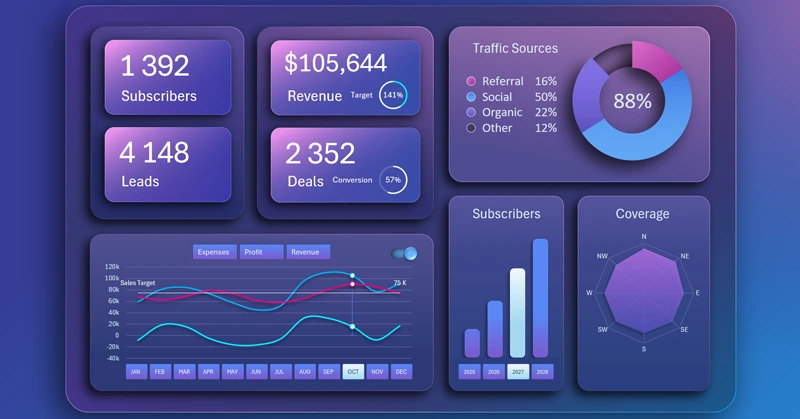
Dashboard for business planning of sales in Excel using SaaS technology
The interactive radar chart in Excel makes data analysis more clear and visually appealing.
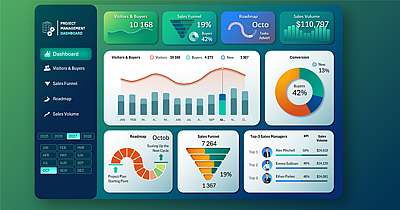
Data Visualization Charts for Interactive Report Creation in Excel.
Dashboard Templates