Radial Bar Chart for Teal Organization Metrics in Excel
How can you visually analyze the distribution of a payroll fund across different company departments in Excel? One effective method is using a radial bar chart. It allows for a deeper understanding of cost structure and company priorities. Using a radial chart in Excel makes such data more intuitive for comparative analysis. And as it is known, truth is discovered through comparison, not argument.
How to visualize resource distribution by departments in Excel
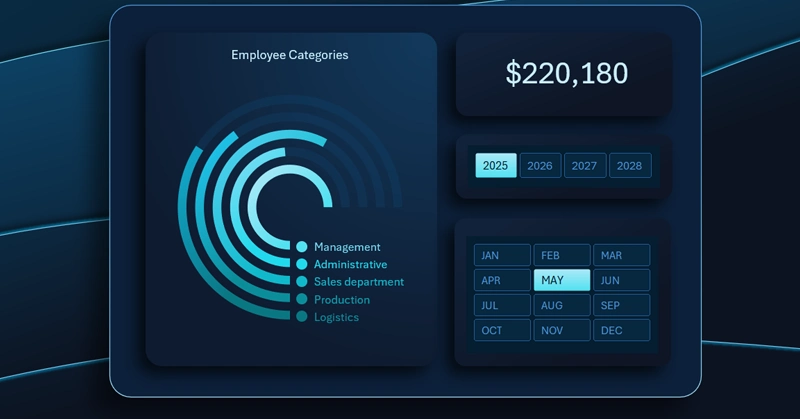
As an example, consider a ready-made template solution. A radial chart in Excel displays the distribution of the payroll fund across:
- Management.
- Administrative sector.
- Sales department.
- Production department.
- Logistics.
An important feature is the interactive functionality with the ability to select reporting periods for analysis: month, quarter, year, and half-year. The chart helps quickly assess the growth of each department’s share and identify key centers of financial resource allocation.
Here is an example of how to use a radial bar chart in combination with other interconnected charts within a single dashboard:
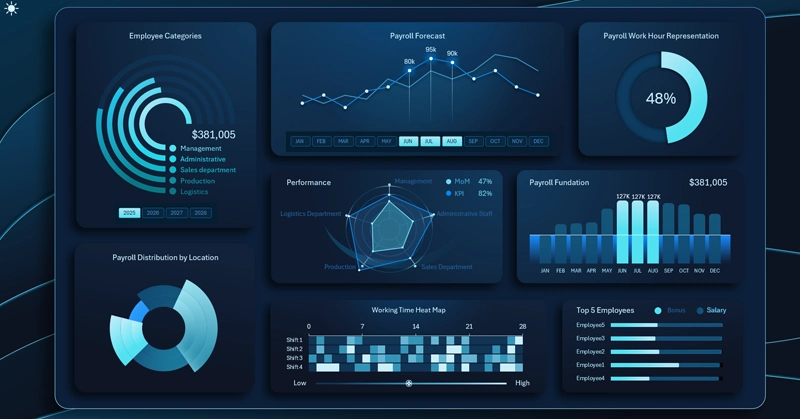
Excel dashboard for payroll analysis in teal organizations
The use of radial charts and interactive control elements transforms static reporting into a flexible analytical tool. The ability to switch between periods and combine data provides a more complete view of resource expenditure dynamics. This approach increases transparency of the financial structure and supports more informed management decisions.
 Download the radial bar chart for comparing metrics in Excel
Data Visualization Charts for Interactive Report Creation in Excel.
Dashboard Templates